
Information Technology · 7 min read
An employee is leaving: what should IT do about their accounts and files?
An IT offboarding request has two jobs: stop access on time and keep the work moving. Here is what to put in the request.

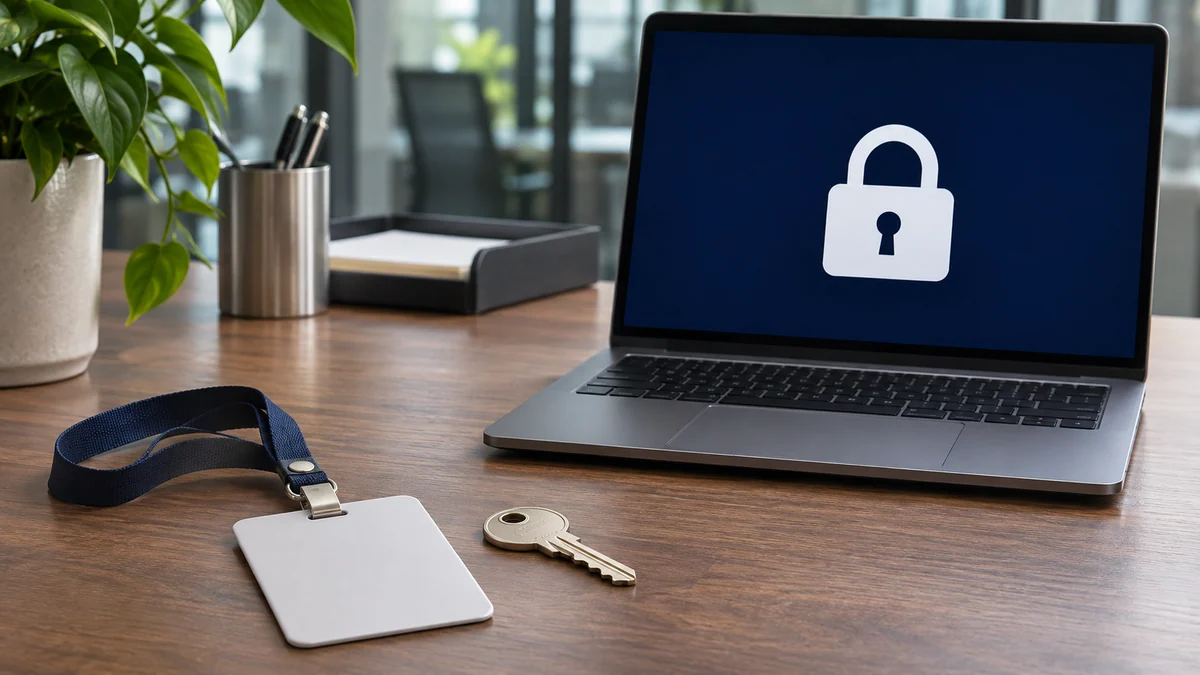
Tell IT when access ends and what the business needs to keep
Ask IT to remove the employee’s access at a specific time, account for company devices and transfer needed work to an authorized owner. Keep access removal and account deletion as separate decisions. Before you request deletion, tell IT what the business needs to preserve and who should handle ongoing messages and files.
At Cross River Tech in Dallas, we support small offices with managed IT and Microsoft 365. I would start an offboarding request with the approved time, the person who can make decisions and the work that has to continue. When those are clear, IT can build a plan around them instead of guessing who should see a mailbox or whether a laptop can be erased.
Start the request with an authorized decision
The owner, manager or human resources lead should tell IT who is leaving, what time access should end and who is authorized to change that instruction. State the time zone. Use the approved support channel and share sensitive details only with the people doing the work. A routine handoff may allow the employee to help transfer open tasks. For a departure that requires an immediate access change, have the approver and IT agree on timing before instructions go out.
List what happens if the date moves or the employee has more than one role. For example, a person leaving day-to-day work may have access through a separate consulting arrangement that management wants to review. Give each account the same attention. Make a point of obtaining a completion notice for the actions you requested, particularly if several administrators will do different parts.
List accounts outside the company inbox
Start with the primary sign-in and office email, then look at what the employee used during a typical week. Think about accounting, scheduling, customer records, file sharing, communication and any services used only by a particular team. Review whether the person had an administrator role or access to a shared workspace. Determine whether each app uses the company sign-in or a separate account, and name an authorized person to handle the ones your IT provider cannot administer.
Ask managers who assigned the employee responsibilities to identify systems they remember granting access to. Your vendor list, license invoices and device inventory can help uncover apps that rarely appear in a project handoff. If a team shared an account or credential, have the authorized administrator review the account and coordinate changing the credential where appropriate. Identify the people or business processes that depend on it so the change does not block their work.
Set aside company work before you remove the account
Microsoft’s offboarding guidance for Microsoft 365 separates blocking access, handling devices, preserving mailbox data and transferring access to files. Decide which work belongs in a team location and who needs access. If the former employee was the only owner of a shared workflow, calendar or recurring report, assign an ongoing owner and check that the person can actually use it.
Ask the business’s record owner whether any legal or retention requirements apply. Work with your legal or compliance adviser when you have a hold or a requirement you are unsure about. Tell IT before approving changes that would affect preservation. The same logic applies if you use another email or file platform. Our comparison of Microsoft 365 and Google Workspace explains why the environment matters when you make account and data decisions.
Try to distinguish active customer work from old material that simply needs to be kept. The first category should be easy for the new owner to find. The second may only need access through a controlled process.
Give incoming mail a destination
A former employee’s address may still receive replies to proposals, updates from a supplier or invitations to meetings. Decide who will be responsible for those communications. For a mailbox with sensitive material, confirm what that person is allowed to see and whether the incoming mail can be handled without giving access to every past message. Ask your IT team which options fit the platform and your policies.
Decide whether an approved automatic reply or a change to public contact information would help callers and customers find the new contact. Check website listings, email signatures, shared documents and recurring calendar invitations. If a client has been sending work to an individual inbox, tell the account owner how to update that arrangement and confirm the next reply is handled.
If your office in Dallas–Fort Worth does not have a written handoff yet, tell us which apps matter most and who can approve changes. We can use those details to discuss which work belongs in the offboarding request and which people need to be available at the cutoff.
Recover equipment and review mobile access
List the laptop, charger, keys, badge and any other company equipment the person is expected to return. Record who will receive it and whether the equipment should be set aside for preservation or cleared for reuse. If the employee works remotely, agree on how you will confirm the return and whether access needs to be addressed before the device arrives.
For a personal phone with company access, ask IT how that access was set up. The appropriate action may differ between a managed work profile and an app the person simply signed into. Have the business authorize any remote change, check the scope, and follow the policy your employee agreed to. Make sure the request clearly distinguishes company data and a personally owned device. If your office has no written arrangement for personal devices, raise that before the next onboarding as well.
Check that an automated process still runs
Look for scheduled reports, data transfers, form notifications or other recurring work set up under the person’s individual account. Ask the team that relies on each one to identify who will run it and where future failure notices should go. Moving a spreadsheet into a shared folder may preserve the file while leaving a scheduled process without an owner.
Where possible, have the new owner carry out the next ordinary step before closing the ticket. Ask them to open the correct record, respond using the approved address, or confirm the scheduled report reaches the right group. Keep the test limited to the permissions they need. If a process cannot be checked immediately, name a person to check it at the next run and decide how they will report a problem. For related planning, see how to verify your business backup can be restored.
Write a separate checklist for people outside IT
The IT provider can change the systems it manages. Someone at the business still needs to tell the right people who now owns projects, collects returned property and makes exceptions. Write those steps next to the technical ones so there is a single handoff. Assign a manager to confirm that routine customer and vendor work has a new owner. If building or physical access is managed separately, ask the authorized person to verify that part of the departure too.
For example, a coordinator leaves after preparing next week’s appointments. The office manager can decide who checks those appointments, who can open the scheduling tool and whether any vendors need a new contact. IT can make the approved permissions change and confirm that the old account is disabled. The office manager should then ask the new coordinator to check the calendar and handle the next ordinary update. Each person can see what is theirs to complete.
For a business with no internal IT staff, put a name next to the vendor instructions as well. The person making the request should know who will receive confirmation and where to record it. If a separate vendor handles the phone system or a remote location, add that vendor to the checklist and confirm their part before marking the work complete.
Confirm each part after the cutoff
Ask for a record of which accounts were disabled, which data was preserved, what devices came back and which exceptions remain. Check that any temporary access has a review date. A ticket marked closed is useful when you can see what was actually done and who is responsible for anything outside the provider’s control. Keep the record where the owner or manager can find it without searching the former employee’s account.
Use the same approach for contract workers and part-time staff who were given company access. If you cannot tell what a provider includes, our questions to ask an IT company before hiring can help you clarify support and access responsibilities. A smaller office can use a short checklist, provided it includes the few systems where missing a step would matter.
Turn the next departure into a repeatable handoff
After the work is done, note which account was hardest to find and which handoff took the most effort. If a manager did not know who owned a tool, add an owner to the inventory. If needed customer records were found in one person’s private work folder, move that workflow into an approved shared location. Make the list fit the way your company works so it is easy for the next manager to use.
If you want our help, bring your current access list and the last offboarding request you used, with personal details removed. Tell us which apps your office depends on and who decides what to preserve. We can talk through the timing, account changes and the checks that would give you confidence the handoff is complete.
Questions people ask me
Is changing the employee’s password enough?
Ask IT to address active sessions, connected devices and other applications under your approved offboarding process. The appropriate actions depend on your systems and how the account signs in.
Should we delete the Microsoft 365 user immediately?
Agree on retention, access and handoff requirements first. Microsoft documents steps for securing access and preserving email and files before account and license decisions.
Who should get access to the former employee’s files?
The business should name a person who has a legitimate need and define what that person can access. IT can then apply that decision using the tools and permissions available to you.
What if the departing employee used a personal phone?
Tell IT about the device and ask which company data can be managed separately. Use your device policy and consult the appropriate adviser before approving any remote removal.
Sources
Keep reading
More from Anthony
- Windows 10 support has ended: what a small office should do with the PCs that still run it
- Teaching office staff to spot phishing, and what to do in the minutes after a click
- Does a small office still need a server, or can everything move to the cloud?
- What managed IT really costs a small Dallas office, and what moves the number
Running a business
- Business Consultant · Armando
- Business Broker · Michael
- Franchise Consultant · Avinash
- Recruiting and Staffing Services · Chase
- Computer Software · Brandon
- Business Phone & Telecom · Beau


